![logo-patch-retention.png]](https://help.patchretention.com/hs-fs/hubfs/Email%20Campaign,%20Free%20Trial/logo-patch-retention.png?height=40&name=logo-patch-retention.png)
Step 1: Export your customer report from Party Center Software
-
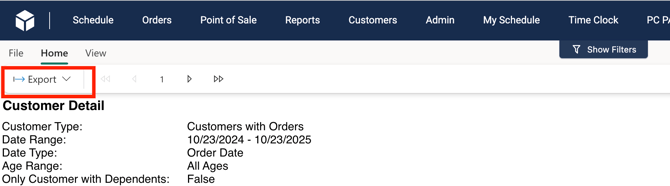
Go to your Party Center Software portal's "Reports" > Customers > Customer Details section. It should look like this when you get there.

-
Adjust your filter options. We recommend setting:
- Customer Type --> Customers with Orders
- Start Date --> 365 days ago
- End Date --> Today
- Date Type --> Order Date
- Dependents --> Search All Customers
-
Click "Run Report" to generate your filtered customer data.
-
Review the generated report to confirm it includes the required contact information - Email, Phone, DoNotSolicit.
-
Export the report as a .csv file
Step 2: Prepare the "DoNotSolicit" Column for Patch Import
To ensure SMS opt-in status updates correctly in Patch, you’ll need to modify the "DoNotSolicit" column in your exported "CustomerDetail.csv" file.
-
Open the file using Excel or Google Sheets
-
Move the "DoNotSolicit" column to column A for easier referencing.
-
Insert a new adjacent column and label it "DoNotSolicit2"
-
In the "DoNotSolicit2" column, enter the following formula (starting in B2):
- =IF(A2="Opt-In", TRUE, FALSE)
-
(Optional) Retain only the Phone, Email, and DoNotSolicit2 columns to streamline your data before importing into Patch.
-
Save your modified file
-
If working in Google Sheets, export the file as a .csv.
Step 3: Import your customer report into Patch
-
In your Patch account go to Account Settings > Import
-
Click the purple plus button to create a new import
-
Set up your import using these recommended options:
-
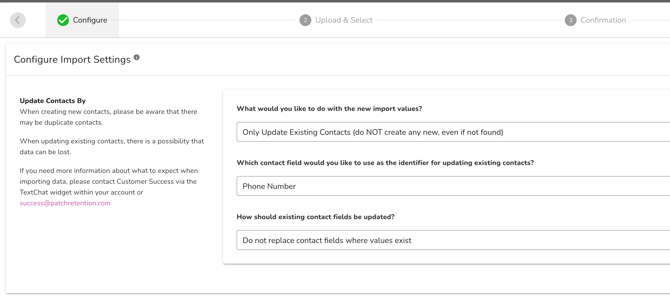
Step 1: Configure > Update Contacts By
- Set the first option to "Only Update Existing Contacts (do NOT create any new, even if not found)
- Set the second option to "Phone Number"
- Set the third option to "Do not replace contact fields where values exist
-
Step 2: Upload your "CustomerDetail.csv" file from Party Center Software and only set these recommended fields:
- Map the "Phone" column to "Phone Number" in the dropdown (this serves as the unique identifier for syncing SMS opt-in status)
- Map "DoNotSolicit2" to "SMS On" in the drop down
- Step 3: Enter your initials and confirm your import.
-
Once complete, Patch will update the SMS On value for contacts who placed orders in the specified date range, reflecting their current opt-in status.