![logo-patch-retention.png]](https://help.patchretention.com/hs-fs/hubfs/Email%20Campaign,%20Free%20Trial/logo-patch-retention.png?height=40&name=logo-patch-retention.png)
Step 1: In the URL section type or copy and paste: https://messenger.patchretention.com.
Step 2: On your Safari web browser, select the ‘share’ button at the bottom of your screen. On Chrome, you will use the 'share' button at the top of your screen.
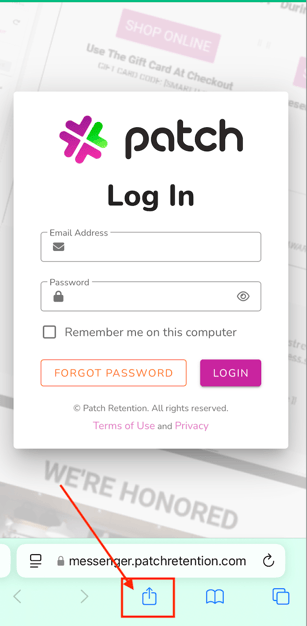
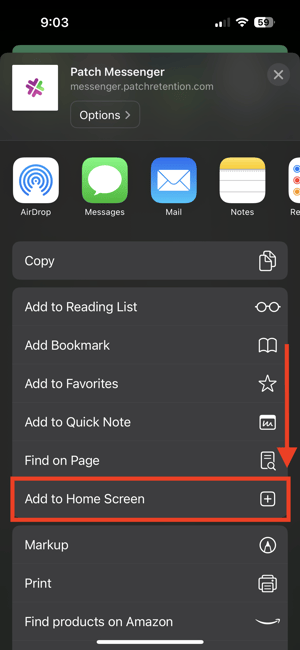
Step 3: After the list that appears, select the ‘Add to Home Screen’ option. This is the same for both browsers.
The 'name' for this shortcut will auto-populate with 'Messenger' - you can change this if you like.
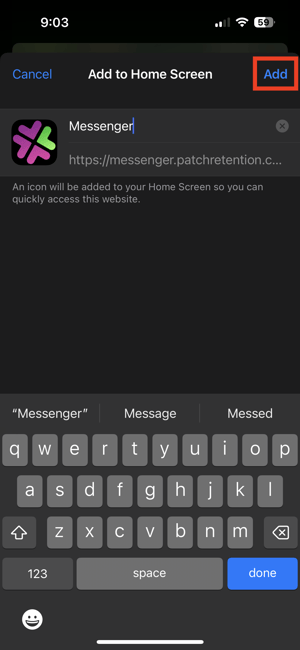
Step 4: Save your changes.
Step 5: Enable Push Notifications
After saving, an icon will appear on your iPhone.
Click on the icon to open the app to manage your messenger inbox.
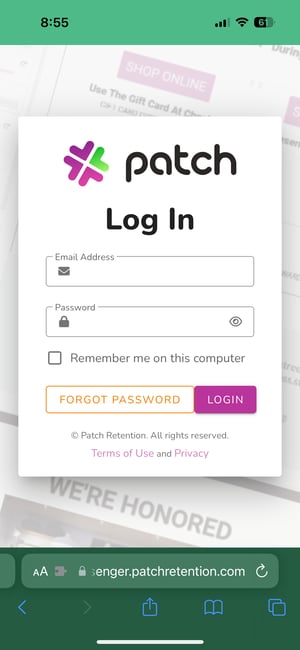
**If you are configured to have access to more than one account, you may need to search/choose the desired account:**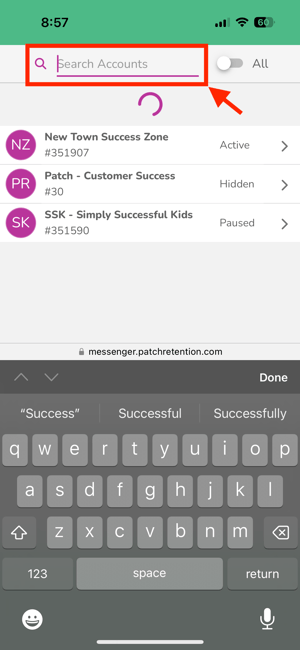
Once you choose your account, it should prompt you to enable notifications.
-1.png?width=300&height=649&name=image%20(1)-1.png)
Select 'OK' to Grant Permissions, and 'YES' to subscribe to incoming notifications.
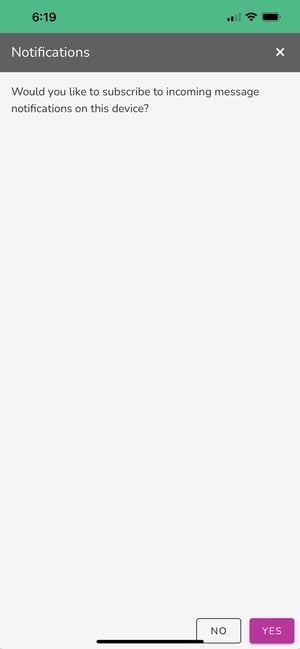
Select 'Allow' to subscribe to the device!
.png?width=300&height=649&name=image%20(2).png)
Customer Support
If you need help or need assistance determining next steps, please contact our Customer Support team by phone at 888.605.4429 or email at success@patchretention.com.