![logo-patch-retention.png]](https://help.patchretention.com/hs-fs/hubfs/Email%20Campaign,%20Free%20Trial/logo-patch-retention.png?height=40&name=logo-patch-retention.png)
Use this step-by-step guide to understand and use Email Validation in Patch. Email Validation helps keep invalid and disposable email addresses out of your sends so you can reduce bounces and protect deliverability.
In this article
- Before you start
- What email validation does
- Step 1: Open email validation settings
- Step 2: Run a free analysis
- Step 3: Enable automatic email validation
- Step 4: Review email validation fields on contacts
- Step 5: Use Email Validation in Automations
- Step 6: Review your segments before sending
- Step 7: Monitor results after sending
- What happens to invalid or disposable emails
Before you start
Email Validation may depend on your account settings and available features. If you do not see the settings described in this article, contact Patch Support.
Email Validation is most useful when you want to protect email sending for:
- New contacts
- Imported contacts
- Contacts added from forms
- Contacts updated by an integration
- Large Blasts
- Re-engagement campaigns
- Automations that send email
Before enabling or using Email Validation, review how your account collects email addresses. If old, fake, disposable, or misspelled email addresses are entering Patch, Email Validation can help reduce risk before those contacts receive marketing emails.What email validation does
Email Validation checks an email address to help determine whether it appears safe to send to.
When an email address is validated, Patch adds or updates two fields on the contact record:
- Email Validation
- Email Validation Time
The Email Validation field shows the result of the validation. The Email Validation Time field shows when the email address was last validated.
If an email address is determined to be invalid or disposable, Patch automatically sets Email Bounce to true. This prevents future email attempts to that address.
This helps protect your sending by reducing the number of emails sent to addresses that are likely to bounce.
Step 1: Open email validation settings
- Log in to Patch.
- Go to Settings.
- Open Email Validation.
- Look for Automatic Validation options.
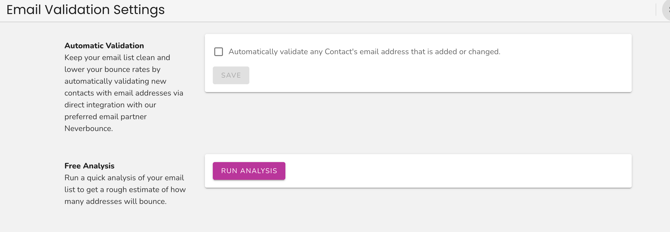
If you do not see the option, your account may not have access yet. Contact support to have it added.
Step 2: Run a free analysis
The Free Analysis option gives you a rough estimate of how many email addresses in your account may bounce.
To run the analysis:
- Go to Settings.
- Open Email Validation.
- Find the Free Analysis section.
- Click Run Analysis.
- Review the estimated number of email addresses that may bounce.
Use this as a planning tool before sending large campaigns. If the analysis shows a high number of likely bounces, clean up your audience before sending a Blast or enabling email Automations.
A high estimated bounce count may mean you should:
- Send to a smaller, more engaged audience first
- Review old imports
- Sunset inactive contacts
- Use Double Opt-In for new subscribers
- Avoid sending to contacts with no recent activity
Step 3: Enable automatic validation
Automatic Validation checks email addresses when they are added or changed on a contact.
To enable Automatic Validation:
- Go to Settings.
- Open Email Validation.
- Find the Automatic Validation section.
- Check the box to automatically validate any contact email address that is added or changed.
- Click Save.
Once this setting is enabled, Patch will automatically validate email addresses when a contact’s email is set or updated.
This is helpful for contacts added or updated through:
- Manual contact edits
- Imports
- Forms
- Integrations
- Bulk updates
- Other workflows that add or change email addresses
Step 4: Review email validation fields on contacts
After an email address is validated, you can review the validation details on the contact record.
To review a contact’s validation status:
- Go to Contacts.
- Open a contact record.
- Look for the Email Validation field.
- Look for the Email Validation Time field.
- Confirm whether the contact’s email address has been validated recently.
These fields help you understand whether Patch has checked the email address and when the check happened.
Use these fields when reviewing contacts before a large send, troubleshooting bounces, or building safer sending segments.
Step 5: Use Email Validation in Automations
Patch also includes a Validate Email Automation block.
This block can be used with At Time -> Select Contacts blocks when you want to validate a specific group of contacts through an Automation.
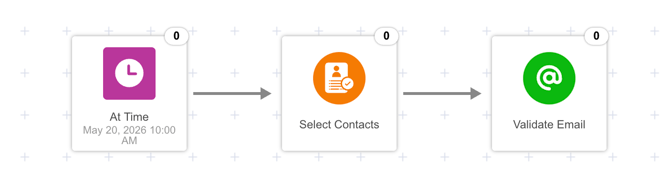
Common use cases include:
- Validating contacts from a recent import
- Validating contacts before a re-engagement campaign
- Validating contacts before a large Blast
- Validating older contacts before adding them back into email sends
- Validating contacts selected by segment rules
A basic Automation flow may look like this:
- Add a At Time block.
- Choose Right Now or Scheduled Time.
- Add a Select Contacts block.
- Choose the contacts or segment you want to validate.
- Add a Validate Email block.
- Approve and close all blocks.
- Save and run the Automation.
- Review the updated Email Validation fields on the selected contacts.
This is useful when you want more control over which contacts are validated and when.
Step 6: Review your segments before sending
Before sending a Blast or enabling an email Automation, review the audience.
Use Email Validation fields and Email Bounce status to make sure your campaign is going to healthy contacts.
Before sending, check for:
- Contacts with valid email addresses
- Contacts who are opted in
- Contacts who have recent activity
- Contacts who are not sunset
- Contacts who are not marked as bounced
Patch automatically stops sending to contacts when Email Bounce is set to true. If Email Validation marks an email as invalid or disposable, Patch sets Email Bounce to true so future emails are no longer attempted to that address.
You do not need to manually remove every invalid email from each campaign, but you should still review your segment and final send count before sending.
Step 7: Monitor results after sending
After your next email campaign, review performance.
Look for:
- Bounce rate
- Open rate
- Click rate
- Unsubscribes
- Spam complaints, if available
- Changes in final send count
- Whether certain sources are creating more invalid emails
If bounces decrease after enabling Email Validation, that is a good sign. It means Patch is helping prevent sends to risky addresses.
If you still see a high number of bounces, review where those email addresses are coming from. Common sources include old imports, typo-heavy forms, manual entry, or synced data from another system.
What happens to invalid or disposable emails
If Patch determines that an email address is invalid or disposable, Patch automatically sets Email Bounce to true on the contact.
This means Patch will no longer attempt to send email to that address.
This protects your account by reducing sends to addresses that are likely to bounce or damage deliverability.
You can still keep the contact record in Patch for customer history, reporting, segmentation, and non-email activity. The contact is not deleted just because the email address is invalid.
Customer Support
If you need help with Email Validation or are not sure which step to take next, contact Patch Customer Support at success@patchretention.com or 888.605.4429.