![logo-patch-retention.png]](https://help.patchretention.com/hs-fs/hubfs/Email%20Campaign,%20Free%20Trial/logo-patch-retention.png?height=40&name=logo-patch-retention.png)
In this article:
- Log in to your Patch account
- Go into the Account Settings
- Select the 'Templates' option
- Create a 'New template'
- Add the 'Quick Reply' tag
- Enter text SMS content and Save
Quick Replies are technically a Template that you can easily insert into Messenger.
Quick Replies are very similar to 'Canned Responses' in email providers like Gmail.
To create a new Quick Reply you will do so in the Templates section under Account Settings.
Let's get started!
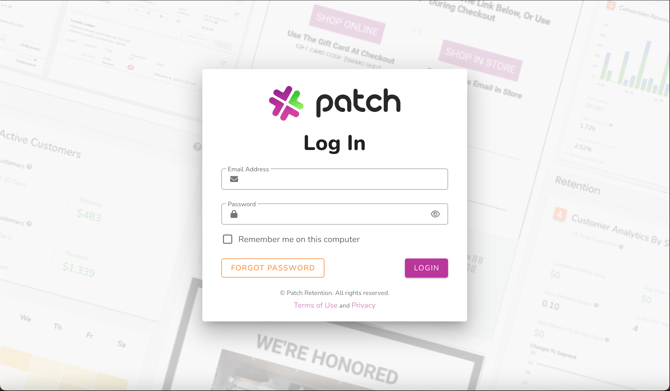
- Log into your Patch account
Visit the Patch website and enter your login credentials to access your account.
https://app.patchretention.com/
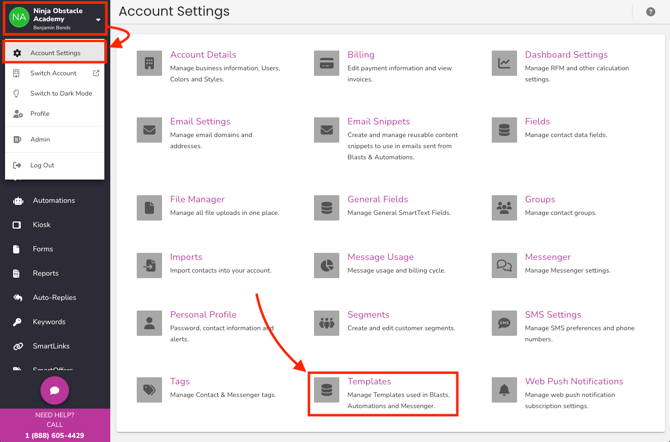
- Go into the Account Settings, and then select the 'Templates' option
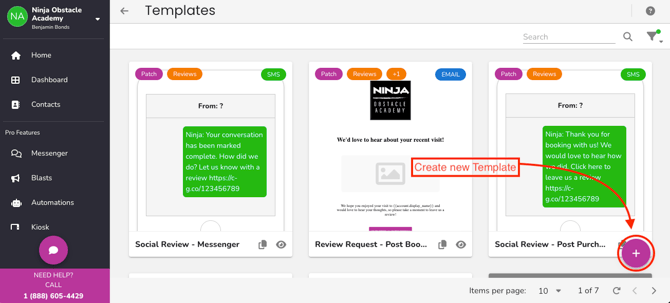
- To create a New Template, select the (+) button in the lower right corner.
- Name the Template and choose the SMS option
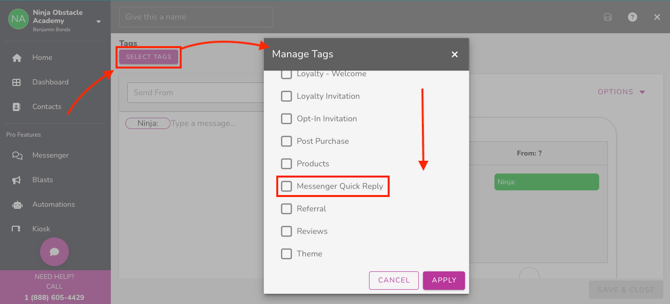
- Select the button for ‘Select Tags’
- Select the Checkbox for 'Messenger Quick Reply'
- Enter the Content of your message into the SMS Content Editor and Save.
The Quick Reply will now appear in the Templates section!
You can also filter or search for the Tag: 'Quick Reply' to see all.
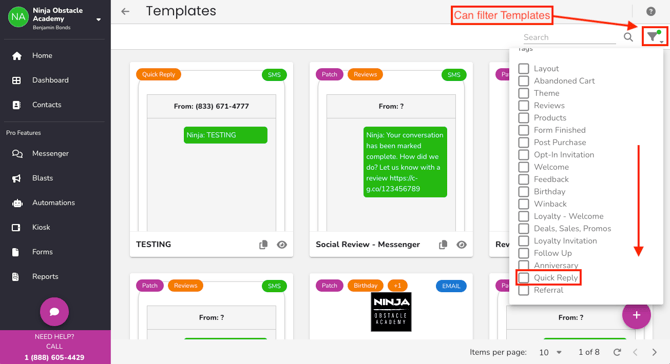
This Template will now appear in the list of Quick Replies within Messenger as well.
- To select a Quick Reply from within Messenger you will click the three dots above the message send icon.
From the list select the Quick Reply you are wanting to use.
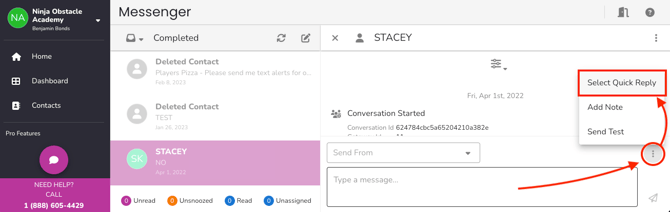
You can also create a new Quick Reply by clicking the gear icon and follow the above steps.
Once you have selected a Quick Reply, the text content will auto-populate!
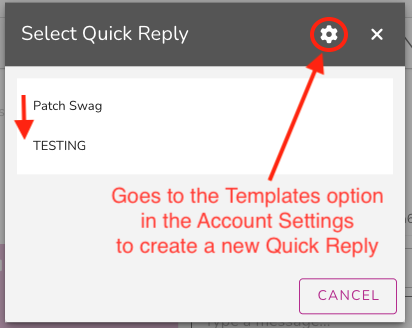
If needed you can still edit the message from here to send to your Contact, however any edits made from this view will only apply to this one message and will not edit the actual Template.
Once you are ready click the paper plane icon to send the message.
Customer Support
If you need help or need assistance determining next steps, please contact our Customer Support team by phone at 888.605.4429 or email at success@patchretention.com.