![logo-patch-retention.png]](https://help.patchretention.com/hs-fs/hubfs/Email%20Campaign,%20Free%20Trial/logo-patch-retention.png?height=40&name=logo-patch-retention.png)
Before you begin
You need:
- The Party Center Software Abandoned Cart add-on enabled on your Patch account
- Admin access to Party Center Software Online Booking settings
- The Patch abandoned cart notification email address for your account
Contact Patch Support or your Customer Success Manager if the add-on is not enabled or you do not have the Patch notification email address. Email success@patchretention.com
How it works
-
Party Center Software can send an email notification when an online booking order or cart is abandoned.
-
That notification includes:
-
Order number
-
Date
-
Guest count
-
Customer email and phone number
- Customer name
-
City, state, and ZIP code
-
-
-
When Patch receives the abandoned cart notification, Patch uses the account identifier in the notification email address to route the notification to the correct Patch account.
-
Patch then looks for an existing contact using the customer’s email address and phone number.
-
If Patch finds a matching contact, the abandoned cart activity is added to that contact.
-
If Patch does not find a matching contact, Patch creates a new contact using the available email, phone number, and name from Party Center Software.
-
Patch then generates an Order Abandoned event on the contact profile.
Important timing note
Party Center Software typically creates abandoned cart emails about 25 minutes after the cart is abandoned.
Because of this, set your Patch automation delays with that timing in mind.
For example, if your Patch automation waits 30 minutes before sending the first reminder, the customer may receive the message about 55 minutes after abandoning the cart:
-
About 25 minutes for Party Center Software to create and send the abandoned cart email
-
Plus the 30-minute delay inside the Patch automation
Configure abandoned cart notifications in Party Center Software
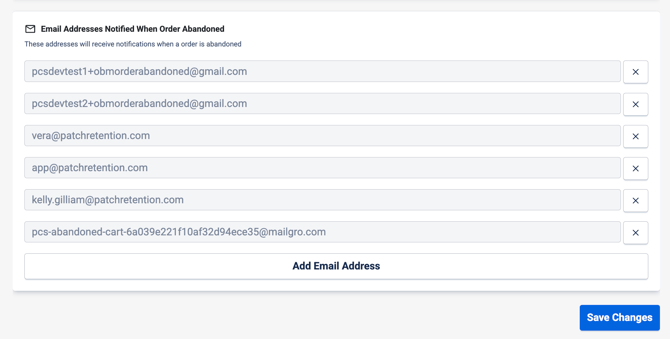
-
Log in to Party Center Software Online Booking as an admin user.
-
Navigate to the Admin > Online Booking Settings > Notifications tab
-
Locate the settings for abandoned order, abandoned cart, or booking notification emails.
-
Enable abandoned cart email notifications.
-
Add the Patch abandoned cart notification email address for your account as a recipient. Do not edit the account ID or any other part of the Patch notification email address. Patch uses this email address to connect the abandoned cart notification to the correct Patch account.
- Save your changes in Party Center Software.
Confirm abandoned cart activity in Patch
After Party Center Software sends an abandoned cart notification to Patch, the abandoned cart activity appears on the customer’s profile. You can manually test this on your admin contact in Patch.
To review it:
- Log in to Patch.
- Go to Contacts.
- Search for the customer by name, email address, or phone number.
- Open the customer profile.
- Open the Activity Log.
- Look for the Order Abandoned event.
The Order Abandoned event confirms that Patch received the abandoned cart notification and added the activity to the customer profile.
Create an Abandoned Cart automation in PatchYou can create an abandoned cart automation in Patch using the automation template wizard or the Patch AI tool.
Option 1: Use the Patch AI tool
You can also use the Patch AI tool to create an abandoned cart automation.
- Click the blue Patch AI button on the side of the screen.You can also access Patch AI from the Patch Home Page.
- Ask Patch AI to help create an abandoned cart automation.
- Review the recommended automation.
- Adjust the timing, message content, and filters as needed.
- Save the automation.
- Turn it on when you are ready.
Option 2: Use the automation wizard
- In Patch, go to Automations.
- Click the purple + button.
- Search for Abandoned Cart.
- Select the abandoned cart automation option.
- Answer the wizard questions.
- Review the automation steps.
- Click Save and Create.
- Review the delay settings before turning on the automation.
Remember that Party Center Software usually sends abandoned cart emails about 25 minutes after abandonment, so adjust your Patch delays accordingly.
Recommended automation timing
Because Party Center Software creates the abandoned cart email about 25 minutes after abandonment, avoid setting your first Patch message delay too long unless you want a slower follow-up.
A common abandoned cart flow is:
- Trigger: Order Abandoned
- Delay: 15–30 minutes
- SMS or email: Friendly reminder to complete the booking
- Delay: 1 day
- Filter: Continue only if no completed order has occurred
- SMS or email: Final reminder or offer to help
Example SMS:
Hi , it looks like you started booking with us but didn’t finish. You can return to complete your party reservation here: [booking link]
Keep the message clear and helpful. The goal is to help the customer finish a booking they already started.
Test the setup
After saving the abandoned cart notification settings, complete a test from your online booking flow.
- Open your Party Center Software online booking page.
- Start a booking as a test customer.
- Enter a customer name, email address, and phone number.
- Add booking details, such as the party date, guest count, or package.
- Leave the cart before completing payment.
- Wait for Party Center Software to send the abandoned cart notification.This may take about 25 minutes.
- In Patch, search for the test customer by email address or phone number.
- Open the contact profile.
- Open the Activity Log.
- Confirm that an Order Abandoned event appears.
If the contact did not already exist in Patch, confirm that Patch created a new contact with the available customer details from Party Center Software.
Troubleshooting
1. No Order Abandoned event appears in Patch
Check the following:
- The Party Center Software Abandoned Cart add-on is enabled in Patch.
- The Patch abandoned cart notification email address was entered correctly in Party Center Software.
- The notification email address was not edited.
- Party Center Software is sending abandoned cart notifications.
- At least 25 minutes have passed since the cart was abandoned.
- The abandoned cart notification includes customer email or phone information.
2. The wrong contact is matched
Patch attempts to match the abandoned cart to an existing contact using the available customer email address and phone number. If multiple contacts share the same email address or phone number, the event may not attach to the expected contact.
Review duplicate contacts in Patch if matching issues occur.
3. A new contact was created instead of updating an existing contact
This usually means Patch could not find an existing contact with the same email address or phone number in the connected Patch account.
Check that the customer’s email and phone number in Party Center Software match the contact information already stored in Patch.
4. The automation did not send a message
Check the automation settings in Patch:
- The automation is turned on.
- The trigger is using the correct abandoned cart event.
- The contact has a valid phone number or email address.
- The message channel is enabled.
- Any filters or delays in the automation are not preventing the message from sending.
- The automation delay is set with the Party Center Software abandoned cart email timing in mind.
Summary
After setup, Party Center Software sends abandoned cart notifications to Patch. Patch uses the notification to find or create the customer contact, then adds an Order Abandoned event to the contact profile.
You can review the event in the customer profile under Activity Log, then use either the Abandoned Cart automation wizard or the Patch AI tool to create a follow-up automation.