![logo-patch-retention.png]](https://help.patchretention.com/hs-fs/hubfs/Email%20Campaign,%20Free%20Trial/logo-patch-retention.png?height=40&name=logo-patch-retention.png)
Bulk Update lets you make the same field(s) change for every contact in a selected segment. This is helpful when you need to apply the same tag, field value, or other update to a large group of contacts.
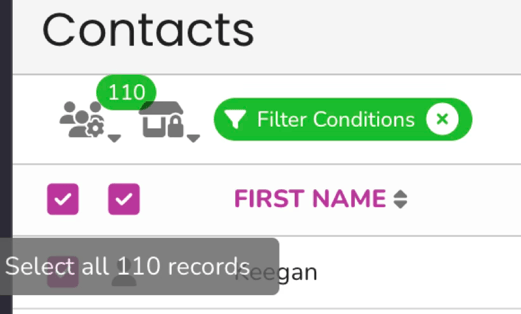
Important: To update every contact in the segment, use both checkboxes. The first checkbox selects contacts on the current page. The second checkbox selects all contacts in the segment across all pages.
Bulk update contacts
- Build or select a segment. From the Contacts page, either create a new segment or choose an existing one so Patch only shows the contacts you want to update.
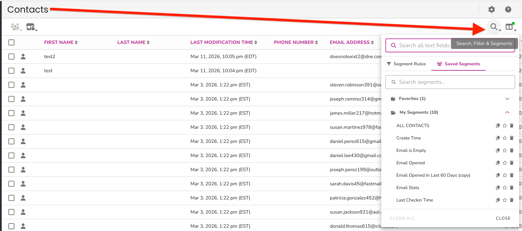
- Select all contacts. Click the first checkbox to select the contacts on the current page. Then click the second checkbox to select all contacts in the segment across every page.
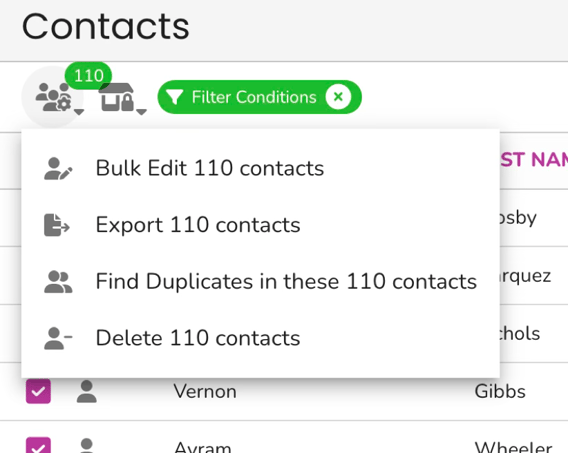
- Open Batch Actions. Click Batch Actions in the top left of the Contacts page.
- Choose Bulk Edit. From the Batch Actions menu, click Bulk Edit.
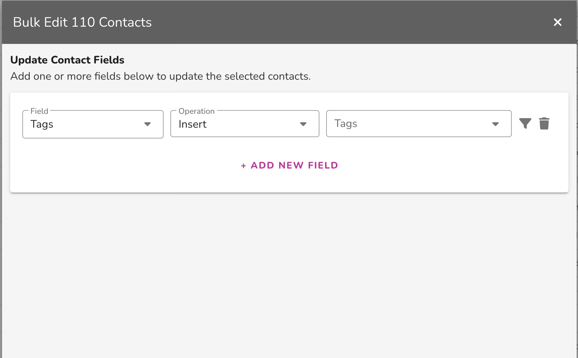
- Choose the fields to update. In the Bulk Edit window, choose the field, operation, and value you want to apply to all selected contacts. Use + Add New Field if you need to update more than one field in the same bulk update.
- Click Update. Click the Update button in the bottom right corner of the popup.
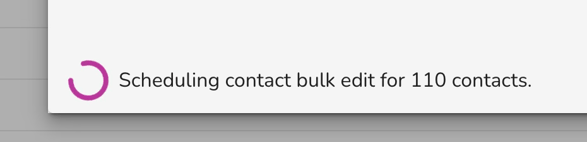
- Confirm the update. Click Yes to confirm and schedule the bulk update.
- Let Patch run the update. You can close the popup after the update is scheduled. The bulk update will continue running in the background.
How to find and review your bulk update
- Go to Automations. Open the Automations page from the left navigation.
- Filter by Archived. Set the Status filter to Archived.
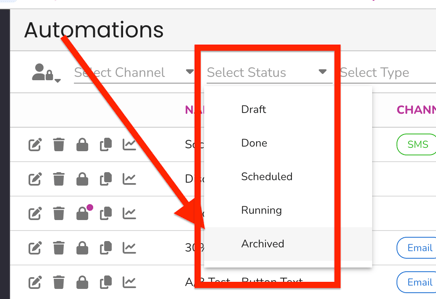
- Find the bulk update. Look for the bulk update automation that matches the contacts and field changes you just scheduled.
- Open the automation. Click the edit button to open it.
- Review the update rules. Check the Select Contacts block and the Set Fields blocks to confirm which contacts were included and which field changes were applied.
Tips
- If you only click the first checkbox, Patch will only select the contacts shown on the current page.
- Required: Use segments first so your update only affects the contacts you want to change.
- Review the Select Contacts and Set Fields blocks in Automations if you need to verify what was scheduled.