![logo-patch-retention.png]](https://help.patchretention.com/hs-fs/hubfs/Email%20Campaign,%20Free%20Trial/logo-patch-retention.png?height=40&name=logo-patch-retention.png)
Patch forms can be added to many kinds of websites. The exact steps depend on how your site is built, but the overall process is usually the same.
This guide covers:
-
all website types
-
WordPress sites
-
Shopify sites
-
popup forms
-
common troubleshooting steps
Before you begin
Before adding a form to your website, make sure:
-
your Patch Pixel is already installed on the site
-
your form is built and ready to publish
-
you know which page the form should appear on
-
you have access to edit that page in your website platform
Note: Some website builders, themes, or page editors limit where custom code can be added. If the standard embed does not work, you may need to use an iframe or ask your website developer for help.
Add a Patch popup form to your website
Popup forms can appear automatically on websites where the Patch Pixel is installed.
Steps
-
Open the form in Patch.
-
Go to the Automatic Installation section.
-
Click the purple plus button in the data table.
-
The Form Setup window will open.
-
Confirm the correct form is selected.
-
In the Form Type dropdown, choose Popup and configure settings.
- Save your changes.
Note: Due to caching, changes may take up to an hour to appear on the live website after the Pixel is installed.
Popup Settings
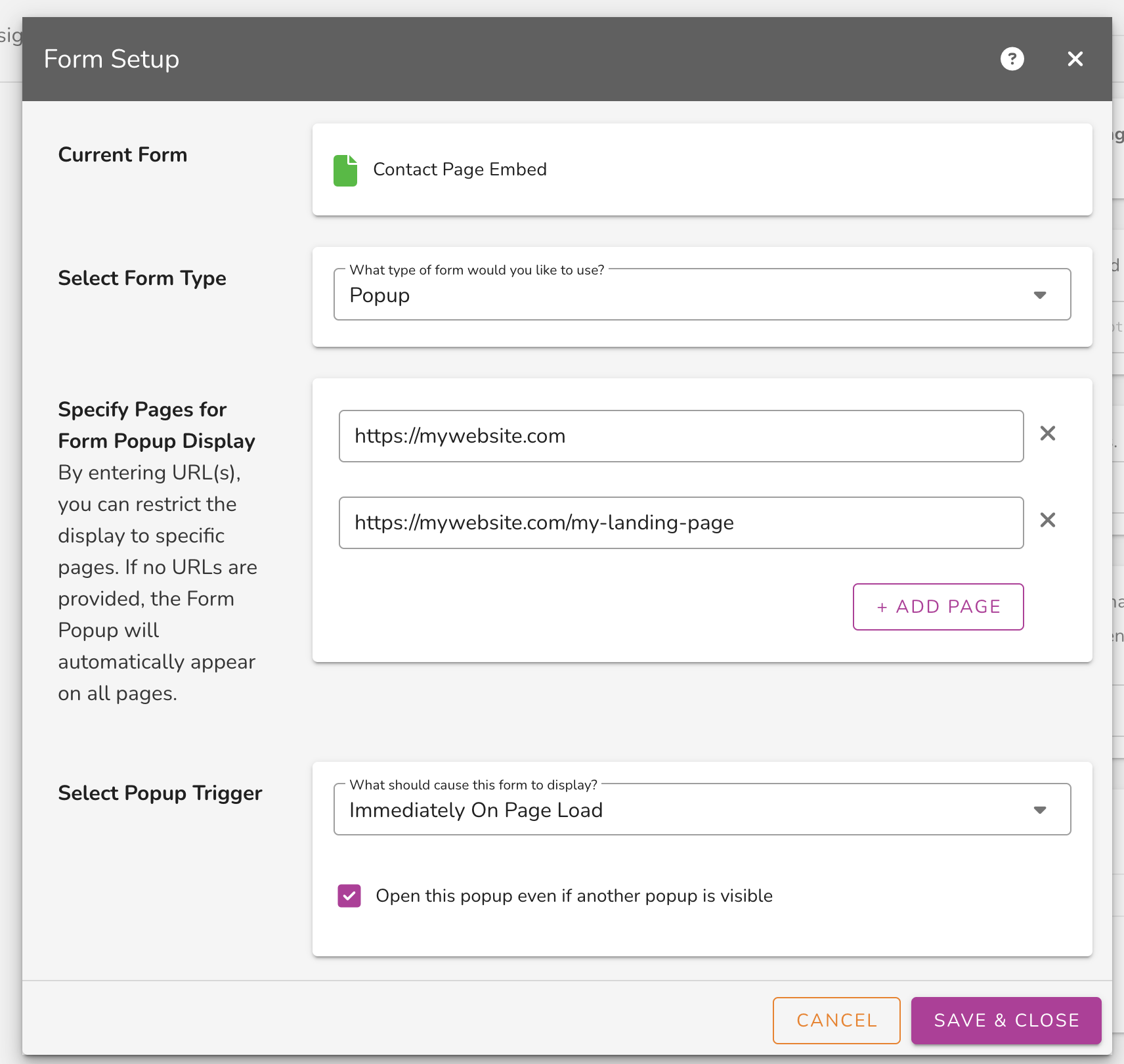
Choose where the popup appears
You can show the popup on all pages or only on certain pages.
Show on all pages
Leave the page list blank.
Show on specific pages
-
Click Add Page.
-
Paste the full URL of the page where the popup should appear.
-
Repeat for any additional pages.
Example:
https://yourwebsite.com/contactChoose how the popup is triggered
You can choose one of these trigger options:
-
Immediately On Page Load
-
After a delay
-
On exit intent
If you choose After a delay, enter the number of seconds before the popup appears. A common starting point is 3 seconds.
How to embed a Patch form to your website
Many websites can display a Patch form using the embed snippet provided in Patch.
How this works
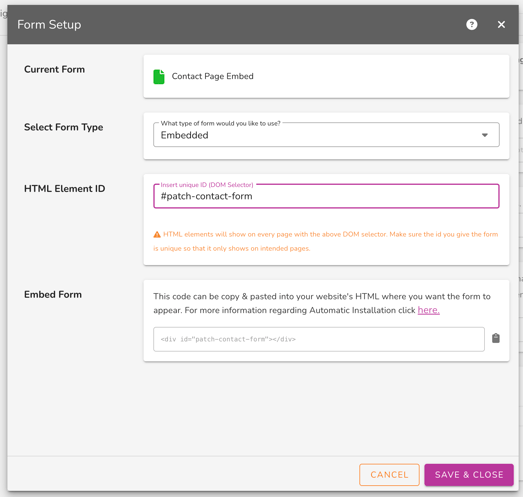
In Forms > Automatic Installation, you will enter a unique HTML ID for the place where the form should appear. When you copy the embed snippet from Patch, that snippet already includes the div with that ID.
Steps
- Open the page on your website where you want the form to appear.
- Add or identify the section where the form should display.
- In website builders this could be an HTML block.
- In Patch, open your form and go to Forms > Automatic Installation.
- Enter a unique HTML ID for that form placement.
- Copy the embed snippet from Patch.
- Paste the full snippet into your website page or code area.
- Save and publish the page.
- Open the live page and test the form.
If the embedded form does not display
Some websites or page builders do not allow scripts to render correctly. If that happens, try using an iframe instead.
Example iframe:
<iframe src="your-form-link" width="600px" height="500px" frameborder="0"></iframe>
Replace your-form-link with your Patch form URL. You can also adjust the width, height, and styling to fit your website.

Tip: If the form still does not appear right away, clear your site cache and browser cache, then test again.
Website platforms
If your website is built on a platform like WordPress or Shopify or is custom developed, you can usually still install a Patch form.
You may need:
-
a code block
-
a custom HTML area
-
access to the page source
-
help from your website developer
If you have a developer or IT team, send them:
-
the Patch embed snippet
-
the page URL
-
the HTML ID you want to use
-
the iframe version if standard embed does not work
Troubleshooting
The form is not showing on the page
Check the following:
-
the Patch Pixel is installed on the site
-
the embed snippet was copied and pasted correctly
-
the HTML ID in Patch matches the HTML ID on the page
-
the page was saved and published
-
website and browser cache have been cleared
-
enough time has passed for cached changes to update
The website builder blocks the script
If your website builder does not allow the form script to run:
-
try using an iframe
-
use a custom HTML or custom code section if available
-
ask your website developer for help
The popup is not appearing
Check the following:
-
the Pixel is installed on the site
-
the popup was saved in the form settings
-
the page URL is entered correctly if you limited it to specific pages
-
the trigger setting is correct
-
the site cache has been cleared
Need help?
If you need help or are not sure which option to use, contact Patch Support:
Phone: 888.605.4429
Email: success@patchretention.com