![logo-patch-retention.png]](https://help.patchretention.com/hs-fs/hubfs/Email%20Campaign,%20Free%20Trial/logo-patch-retention.png?height=40&name=logo-patch-retention.png)
GoTab stays your POS / tab system. Patch pulls identifiable tab owners and completed purchases so you can run email & SMS marketing in one place: often next to another venue system already in Patch.
Who does what
|
You do |
Your Patch onboarding rep does |
|---|---|
|
Click Connect GoTab and sign in on GoTab’s screen |
Match Patch timezone to your venue |
|
Choose which GoTab locations to share with Patch |
Map each location to the right Patch account (multi-location) |
|
Tell your rep when the connection shows as connected / authenticated |
Activate the integration and start the first sync |
|
Spot-check a settled purchase with guest email or phone |
You don’t paste API secrets into Patch. Patch connects them for you.
Before you start
You’ll need:
- A GoTab manager login that can authorize locations for Patch.
- At least one location you want connected.
- Guests who leave an email or phone on the tab when you want them in Patch (anonymous tabs don’t create contacts).
Important: GoTab does not send marketing opt-in to Patch. Order-update texts in GoTab are separate from Patch email/SMS consent.
Step 1: Connect GoTab
- In Patch, go to Settings → GoTab.
- Click Connect GoTab (wording may match your screen).
- Sign in to GoTab and select the locations Patch should use.
- Finish the redirect back to Patch.
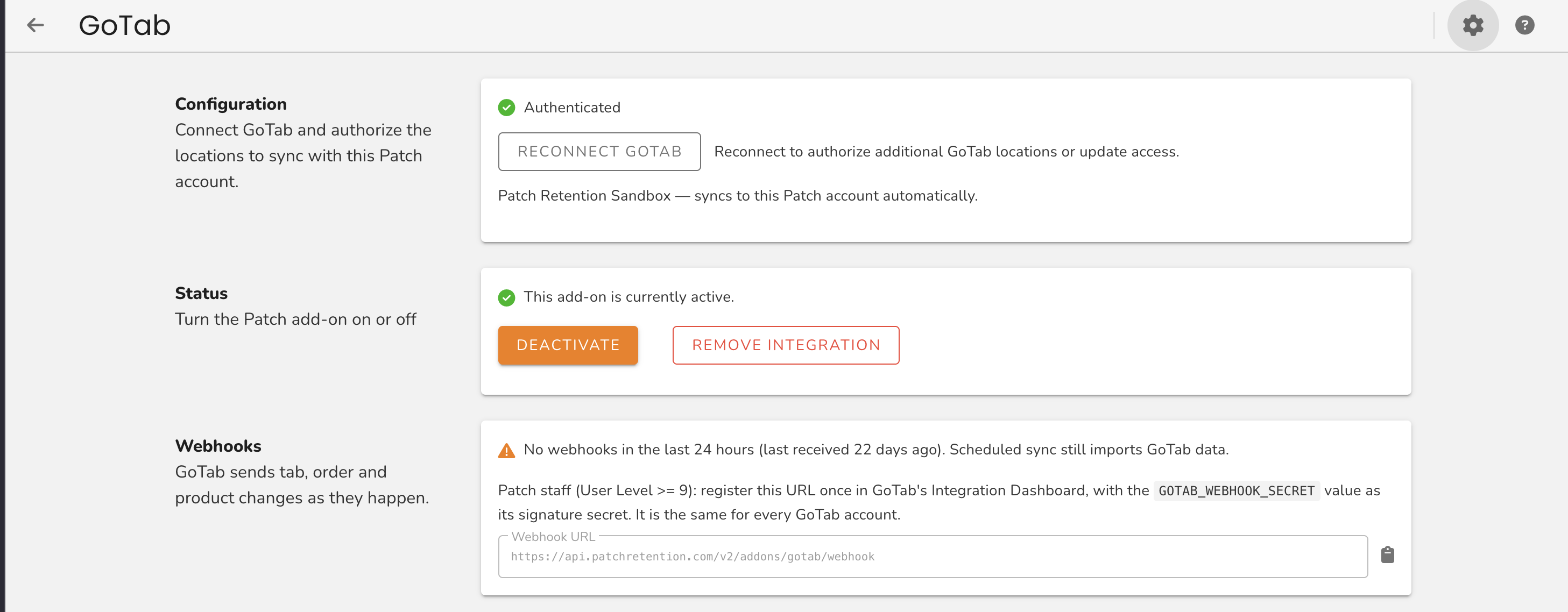
You should see a successful connection. That’s your main part done: let your onboarding rep know.
If it doesn’t connect:
- Confirm the same GoTab login can manage those locations in GoTab. You Patch user's email address should match the GoTab login with the proper permissions to connect the integration.
- Try Connect again from the same Patch account your rep named.
Multi-location brands: your rep will map each authorized location to a child account.
What happens next
Your rep activates the integration, assigns locations to the right Patch accounts if you have more than one, and starts the first sync. Webhooks for fresher updates are handled as part of go-live: you don’t configure a separate callback URL in GoTab for Patch.
Once you’re live:
- Patch syncs on a schedule, about every 6 hours.
- Tab and product changes can arrive sooner when webhooks deliver.
- Only an identified tab owner with a valid email or phone becomes a contact and purchase in Patch.
- Purchases need a closed tab with a closing time and successful payment (unsettled tabs may create a contact but not Order Finished).
What syncs
|
Data |
Notes |
|---|---|
|
Contacts |
Identified tab owners (email or phone required) |
|
Orders |
Closed, settled tabs → Order Finished; refunds when applicable |
|
Products |
Menu / product catalog for line items |
|
Discount codes |
Not generated in GoTab from Patch |
GoTab does not sync check-ins, calendar bookings, memberships, or waivers in this connection.
Your checklist
- Connected GoTab from Settings → GoTab
- Chose the right locations on GoTab’s consent screen
- Onboarding rep notified
- Spot-check a settled purchase with guest email/phone after the first sync