![logo-patch-retention.png]](https://help.patchretention.com/hs-fs/hubfs/Email%20Campaign,%20Free%20Trial/logo-patch-retention.png?height=40&name=logo-patch-retention.png)
Overview
- Detect when a guest starts but does not complete a qualifying CenterEdge online booking.
- Wait a set amount of time (for example, 30 minutes) to see if they come back on their own.
- Automatically send a sequence of reminder emails and/or texts to nudge them to finish booking.
- Optionally include a follow-up incentive (for example, a limited-time discount) as a final reminder.
- What you need in place before using CenterEdge Abandoned Cart.
- How the automation works at a high level.
- How to review and customize your email + SMS content.
- Where to add images and screenshots so the flow is easy to follow.
- How to test and turn the automation on.
Note: This article assumes your CenterEdge ↔ Patch integration and Abandoned Cart Addon are already added by the Patch team to your Patch account and that you have online checkouts enabled in CenterEdge. If you’re unsure, reach out to your Patch onboarding specialist or success@patchretention.com before walking through this article.
Prerequisites
- A Patch account with the CenterEdge integration installed.
- The CenterEdge Abandoned Cart addon enabled in Patch, in addition to the base CenterEdge add-on.
- Note: Contact your onboarding specialist or success@patchretention.com to have this added to your account
- Admin access to the venue’s CenterEdge Online store (for example,
yourvenue.centeredgeonline.com). - Permission to edit System Settings → Options → Analytics in CenterEdge Online.
Part 1: Get the script tag from within Patch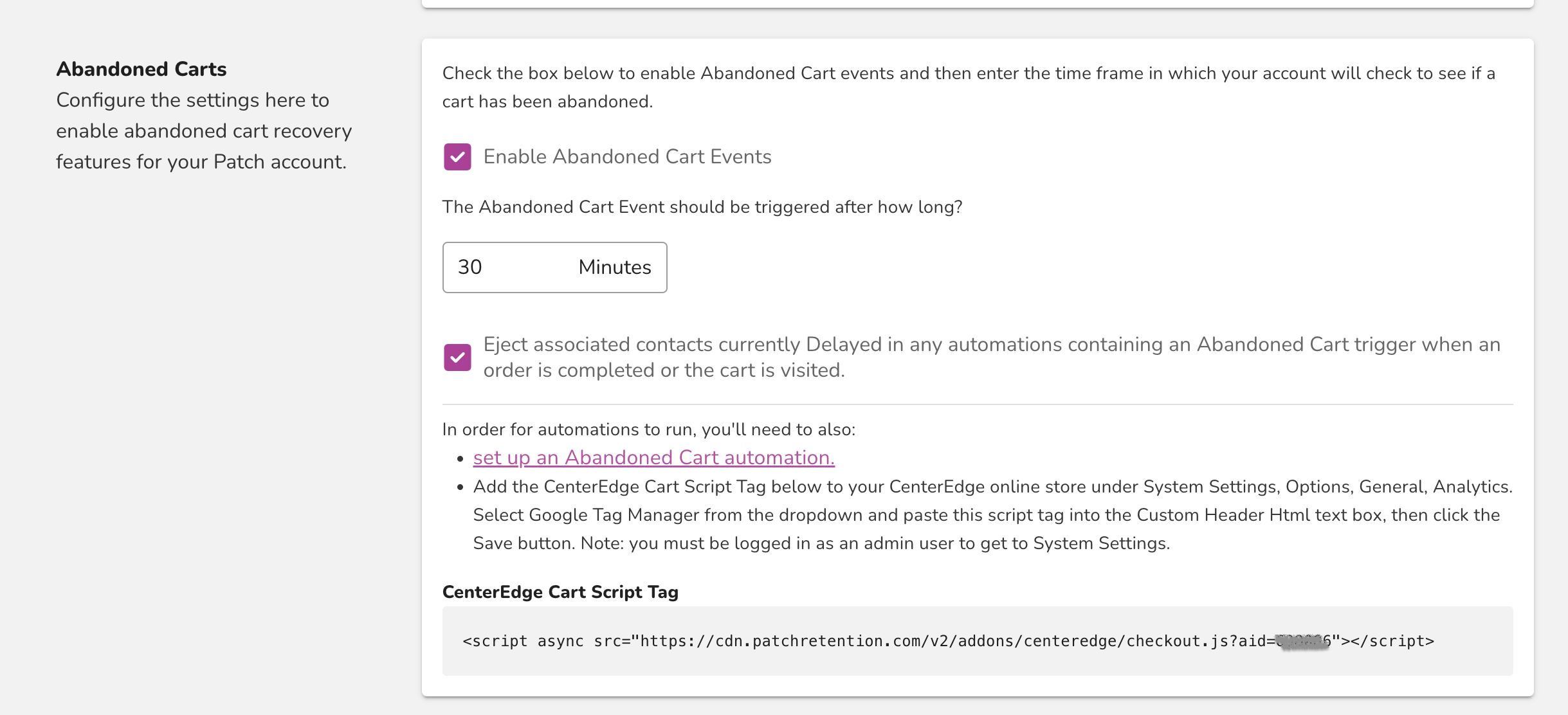
- In Patch, go to Account Settings > CenterEdge
- Click "Enable Abandoned Cart Events"
- Find CenterEdge Abandoned Cart section.
- Note: If you don't see it reach out to success@patchretention.com to have the addon added to your account.
- Copy the full script tag; you’ll paste this into CenterEdge Online in the next section.
Part 2: Add the script tag in CenterEdge Online
- Go to your venue’s CenterEdge Online store as an admin (most URLs follow a pattern like
something.centeredgeonline.com). - Log in with an admin account.
- From the admin navigation, go to System Settings.
- Open Options. The General section that opens first is correct.
- In this view, look for additional sections and click Analytics.
- On the Analytics screen:
- If the dropdown is set to None, change it to Google Tag Manager.
- In the "Custom Header Text" text box, paste the script tag you copied from Patch.
- Click Save.
- Once this is saved, CenterEdge will run that script during the checkout process, including when a guest reaches the cart page.
Part 3: Set up and enable the Abandoned Cart Automation in Patch
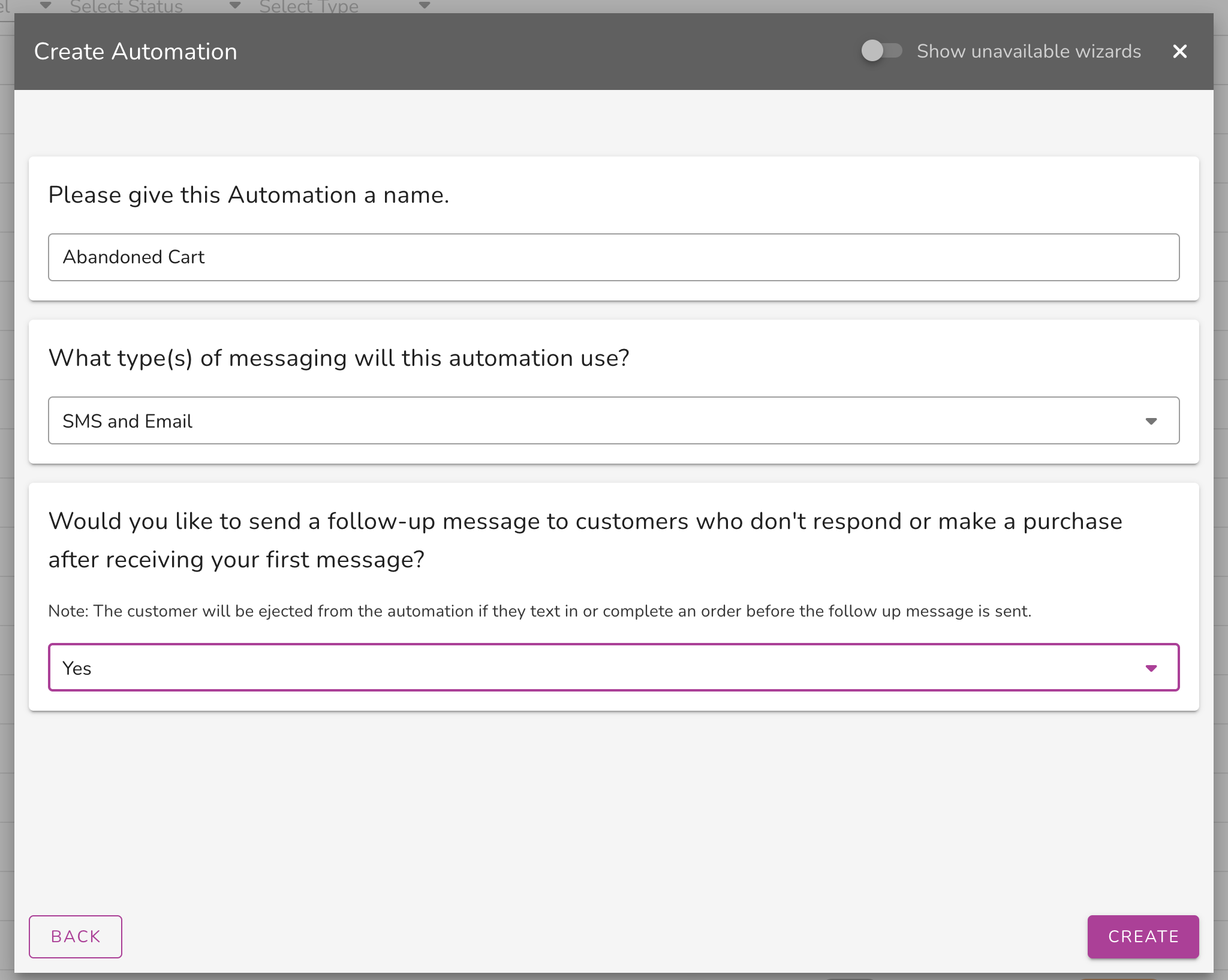
- In Patch, go to Automations and click the purple plus button in the bottom right corner to create a new automation.
- Locate "Abandoned Cart" in the list of options.
- Answer the questions provided.
- Click Create.
- You can review the SMS and Email content in the automation now, or disconnect the Abandoned Cart trigger blocks for testing and revisit the content later.
- Enable the automation from the top right

Part 4: Test that abandoned cart tracking is firing
- In CenterEdge Online, add an item or event to the cart - just as a guest would.
- Note: You must be logged in to the online store before this will work. The online store will let you add items to the cart even if you're not logged in, and there's an option to check out as a guest, and in that case Patch can't identify who the customer is to trigger the Abandoned Cart automation.
- Proceed through the flow until you reach the cart page with something in the cart.
- For an abandoned cart test specifically:
- Start the checkout and get to the cart page.
- Do not complete the purchase - leave the cart with items in it.
- This visit to the cart page with items should trigger the start of the abandoned cart process.
- Note that you or Patch can confirm events are flowing by checking for:
- Verify the appropriate abandoned cart activity/event in Patch for the test contact by checking the Contacts module and searching for the contact.
- Confirm that the abandoned cart automation was triggered by examining the trigger block. If the top right corner of the block shows a number 1 or higher, the data is flowing correctly.
How the CenterEdge Abandoned Cart automation works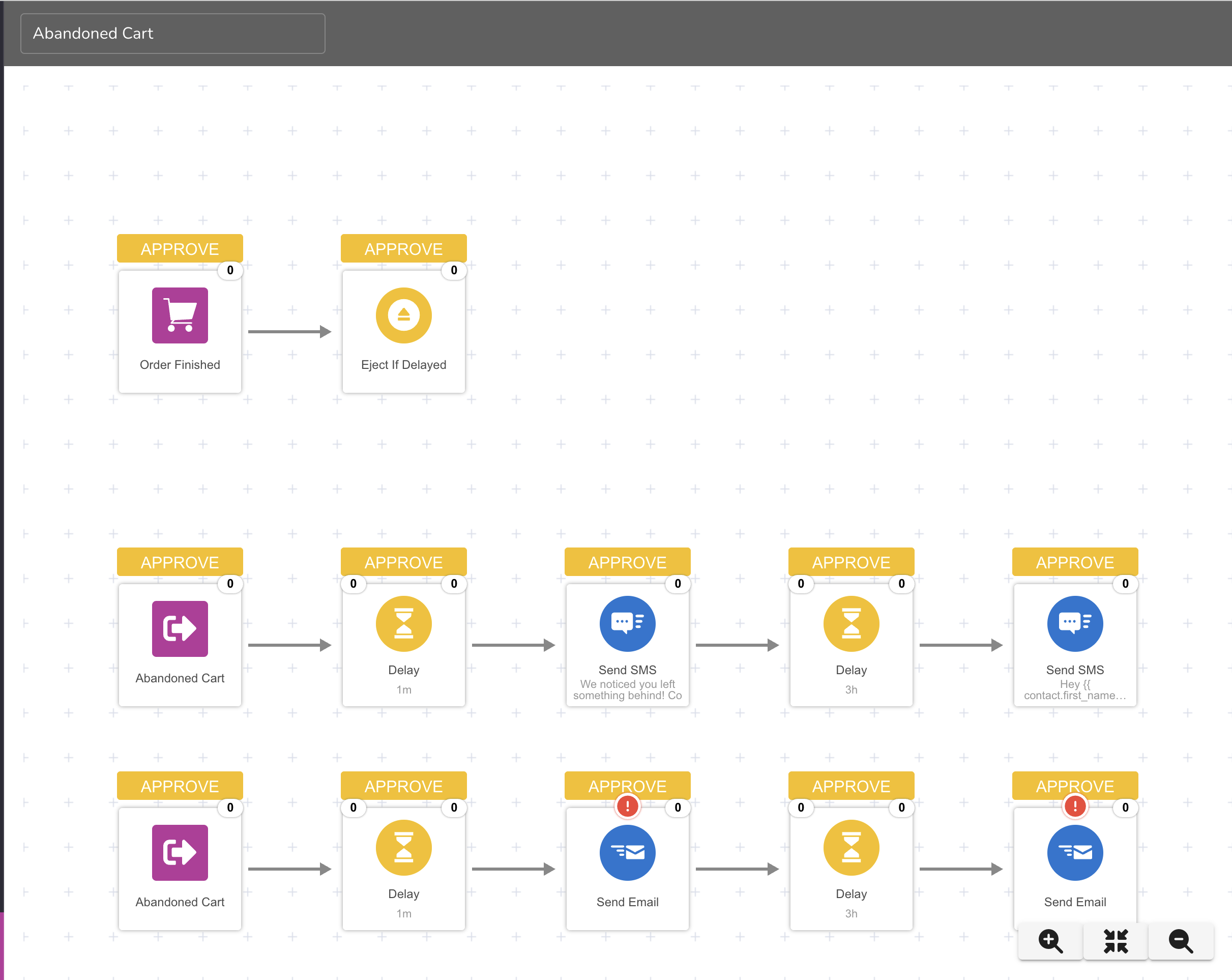
- Trigger: Customer abandons cart in CenterEdge.
- Delay: Wait X minutes or hours.
- Reminder sequence:
- 1st reminder: friendly nudge to finish their booking.
- 2nd reminder: urgency, “you’re almost there”.
- Optional: final reminder with a time-bound incentive.
- Exit: Customer completes bookingor reaches the end of the sequence.
- Note: The automation adds an Incoming TextChat trigger block by default to the eject path. If you do not use TextChat delete the block from the Automation.
Tip: Keep the flow short and focused. For most venues, 2–3 touches over a few days is ideal.
Step 1 – Locate the CenterEdge Abandoned Cart automation
- In Patch, go to Automations.
- Look for an automation named something like:
- CenterEdge – Abandoned Cart
- Abandoned Cart
- Or a similar name created by you or your onboarding team.
- Open the automation canvas.
- Use the search box in Automations and type “abandoned” or “cart”.
- If nothing comes up, contact Patch support at success@patchretention.com or reach out to your onboarding specialist.
Step 2 – Review the trigger and filters
- There are two paths for each message type and each block is configured to trigger only for contacts who are marketable by default. It is recommended to leave these settings.
- Add additional conditions based on contact data if you would like to further limit who triggers the automation.
Recommendation: Start simple. If you’re new to abandoned cart, leave the default filters as-is or only make small changes. You can refine later based on performance.
Step 3 – Customize your email & SMS content
- Lead with clarity: tell the guest what they were doing and what to do next.
- Make it obvious how to get back to their cart or booking.
- Use a single, clear primary call-to-action button or link.
- Keep SMS short and conversational.
Hi ,
It looks like you started booking a visit at but didn’t get a chance to finish.
Your spots aren’t reserved yet – tap below to pick up where you left off.
(button) [Complete your booking]
If you didn’t mean to start this booking, you can safely ignore this message.
“Hi , it’s . You started a booking but didn’t finish. Tap here to pick up where you left off: Reply STOP to opt out.”
- In the automation canvas, click the first Send Email block.
- Edit:
- Subject line
- Preview text (optional, but recommended)
- Body content, including the primary button link.
- Repeat for any additional email blocks.
- Click each Send SMS block and update the message text.
Important: Make sure any links in your messages point to the correct CenterEdge booking URL.
Step 4 – Decide on discount / incentive strategy (optional)
- A percent-off or dollar-off coupon.
- A free add-on (e.g., drink, socks, or arcade credits).
- A limited-time upgrade.
- Create the discount in CenterEdge following your normal discount / promotion workflow.
- Copy the exact code and any rules (for example, minimum spend, valid days, expiration date).
- In Patch, add that code into the final email and SMS copy.
Best practice: Make the incentive conditional and time-bound (for example, “Good for 48 hours”) so guests feel urgency without discounting every booking.
Step 5 – Test the flow before going live
Tip (optional): To capture all abandoned checkouts, in CenterEdge disable guest checkouts. See the CenterEdge Advantage Web FAQs > How do I change what information is required to check out? for more information on how to do this. This will only allow guests who are logged in to go through the checkout flow. Patch only receives abandoned checkouts that have an email address. This is OPTIONAL and you should consider other factors to ensure this is the best settings option for your business.
- In CenterEdge, create a test booking using your own email and phone number.
- Start checkout and abandon the cart at the point you’d expect guests to drop off.
- After the configured delay, confirm that:
- You receive the expected email(s) and/or text(s).
- Links in the messages take you back to the correct booking flow.
- Branding, disclaimers, and reply/STOP language look correct.
- Return to your cart and finish the booking.
- Confirm that no further abandoned cart reminders are sent for that test contact.
- Pause the automation.
- Fix the content or timing.
- Re-run a test until it behaves as expected.
Step 6 – Enable the automation
- Open the CenterEdge Abandoned Cart automation in Patch.
- Make sure all required blocks (especially the trigger and messages) are configured and not showing errors.
- Toggle the automation from Disabled to Enabled
Tip: After you turn it on, check performance after the first 2–4 weeks. Look at:
-
How many abandoned cart contacts enter the flow.
-
Open / click / reply rates.
-
Confirmed bookings attributed to the automation - look in the Order Finished trigger block > Stats tab.
- Patch will not receive full line-item details from the abandoned cart; the automation will still work as long as we can identify the contact and the abandoned booking.
- If your venue has unusual booking flows (for example, multiple separate checkouts), work with Patch support to confirm which ones are covered by Abandoned Cart.
- CenterEdge abandoned cart attempts to match to a Patch contact using the email address of the user who is logged into the CE online store. (We don't have access to the unique ID of the customer.) Therefore, if there are multiple Patch contacts with the same email address, it's possible it will not identify the correct contact. If email address uniqueness is enabled (which is a setting in CenterEdge that we recommend enabling), this will not be a problem.
FAQ
Who should receive CenterEdge Abandoned Cart messages?
- Guests who started an online booking but didn’t complete checkout.
- Guests who have valid email and/or SMS opt-in on file.
- Contacts without clear consent for marketing or booking-related messages.
- Internal test accounts (create a convention like using “+test” in the email address and excluding those).
How many reminders should we send?
- Friendly reminder.
- Slightly more urgent reminder.
- Optional final reminder with a small incentive.