![logo-patch-retention.png]](https://help.patchretention.com/hs-fs/hubfs/Email%20Campaign,%20Free%20Trial/logo-patch-retention.png?height=40&name=logo-patch-retention.png)
What’s in This Article
What This Trigger Does
The Calendar Event trigger schedules your automation to run around a calendar item’s:
-
Start time, or
-
End time
Then you choose whether it runs:
-
Before that time, or
-
After that time
…and by how much (days, hours, minutes).
Think of this trigger as:
“Run this automation around an event on my calendar.”
When to Use This Trigger
Use Calendar Event when you want to:
-
Send reminders before an appointment / booking
-
Send follow-ups after an event ends (feedback, reviews, user generated content)
-
Reduce no-shows (sports lessons, parties, reservations, memberships)
-
Trigger staff/admin workflows (internal alerts)
-
Run different messaging for different event types (using conditions)
When Not to Use This Trigger
Do not use Calendar Event if:
-
You need to react to a customer action (use another event-based trigger instead)
-
You need to trigger on data changes (use Contact data-based trigger or rule)
-
You don’t have reliable calendar items being created (the trigger needs real events)
Run Options Explained
1) Should this run based on the start or end time?
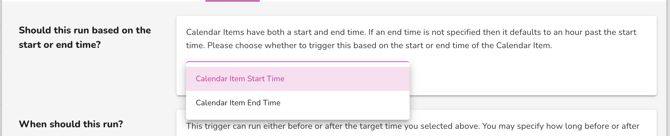
Choose what the trigger anchors to:
-
Calendar Item Start Time
Best for: reminders like “Your booking is in 24 hours.” -
Calendar Item End Time
Best for: follow-ups like “Thanks for coming—leave a review.”
If an end time is missing, the system may treat it as 1 hour after the start (based on how the calendar item is saved).
2) When should this run?

Pick when the automation runs relative to the time you selected above:
-
Before the Start/End Time
-
After the Start/End Time
Examples:
-
“2 hours before start” (reminder)
-
"25 minutes after start" (in store upsell)
- “15 minutes after end” (feedback request)
3) Include Calendar Items that have already passed
Enable this if you want the automation to also schedule items where the start time is already in the past.
Common reasons to enable this:
-
You just turned the automation on and want it to catch recent events
-
You are testing and using an event that already started
Common reasons to leave it off:
-
You only want future reminders and follow-ups
4) How long before/after?

Set the timing offset using:
-
Days
-
Hours
-
Minutes
Examples:
-
1 day before (1 day, 0 hours, 0 minutes)
-
2 hours before (0 days, 2 hours, 0 minutes)
-
15 minutes after (0 days, 0 hours, 15 minutes)
5) Add Conditions
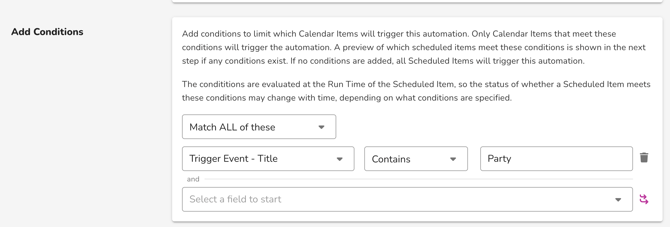
Use conditions to limit which calendar items trigger the automation.
This is where you can say things like:
-
Only run for Orders - Item Names = Party Booking events
-
Only run if Status = Confirmed
-
Only run if Event Type = Lesson
Important: Conditions are checked at the scheduled run time, not when the calendar item is created. So if the event changes later (time, status, etc.), the trigger may behave differently.
6) Scheduled Items (Preview)

This section shows a preview of upcoming contacts with calendar items that match your settings.
Use it to confirm:
-
Events are being detected
-
Timing looks correct
-
Conditions are filtering correctly
Common Use Cases
-
Booking reminders (24 hours before + 2 hours before)
-
Party/event follow-ups (2 hours after end)
-
Court booking reminders (2 hours before start)
-
Room rental instructions (1 day before start)
-
Post-visit review request (2 hour after end)
-
Membership orientation (start-time reminder sequence)
What Data This Trigger Has Access To
This trigger is tied to the calendar item. It can use calendar-related fields that are available in your account (example: event title, type, start time, end time, location, status - depending on how your calendar items are configured via your integration).
If you need contact targeting, make sure your automation includes the right steps to identify/select the correct contact(s) associated with the calendar item (how this works depends on your calendar/booking setup and integration).
Important Things to Know
⚠️ Keep these in mind:
-
Calendar items have a start and end time (end time matters if you trigger on “End Time”)
-
Conditions are evaluated at the scheduled run time
-
If a customer changes the calendar item time, the scheduled run may shift
-
Time zone behavior follows your account settings
-
If your calendar items aren’t connected to contacts, your messaging steps may not have anyone to send to
Example Automations
Example 1: Appointment Reminder (Reduce No-Shows)
-
Calendar Event Trigger
-
Based on: Start Time
-
Run: Before Start Time
-
Offset: 1 day
-
-
Send SMS: “Reminder: you’re booked for tomorrow at .”
-
Delay: 22 hours
-
Send SMS: “We’ll see you in 2 hours. Reply YES to confirm.”
Example 2: Post-Event Review Request
-
Calendar Event Trigger
-
Based on: End Time
-
Run: After End Time
-
Offset: 30 minutes
-
-
Send SMS Block: “Thanks for coming! Want to leave a quick review?”
-
Message Reply Block: If reply = YES → send SmartLink to review page
Example 3: Party Booking Instructions (Only for Parties)
-
Calendar Event Trigger
-
Based on: Start Time
-
Run: Before Start Time
-
Offset: 2 hours
-
-
Condition: Event Type = Party
-
Send SMS Block: parking + check-in instructions + waiver link