![logo-patch-retention.png]](https://help.patchretention.com/hs-fs/hubfs/Email%20Campaign,%20Free%20Trial/logo-patch-retention.png?height=40&name=logo-patch-retention.png)
What’s in This Article
- When not to use this trigger
- Run options explained
- Common use cases
- What data this block uses
- Example automations
What This Trigger Does
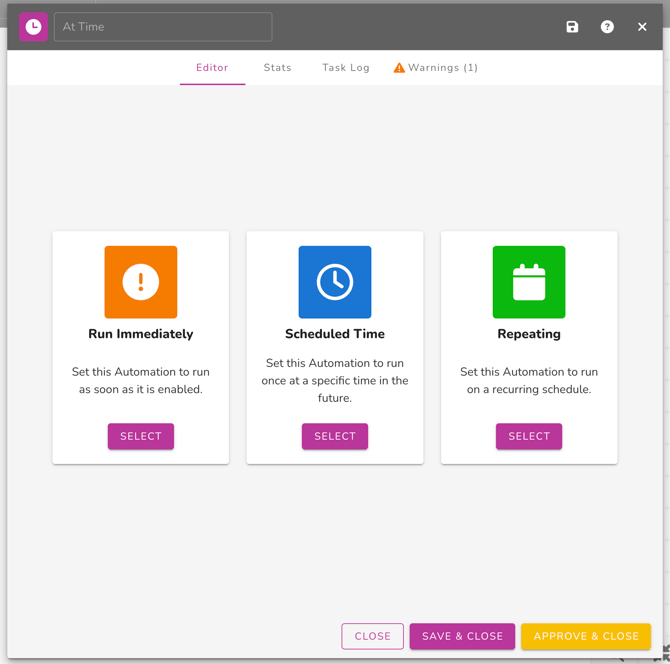
The At Time trigger starts an automation based on a schedule, not a customer action.
Instead of waiting for something to happen (like a purchase or message), this trigger runs:
-
Immediately
-
At a specific future time
-
Or on a repeating schedule
Think of this trigger as:
“Run this automation on my timeline.”
When to Use This Trigger
Use At Time when you want to:
-
Send scheduled messages or reminders
-
Run recurring reports or data tasks
-
Perform regular system maintenance actions
-
Launch campaigns at a specific date and time
This trigger is ideal for time-based automation, not behavior-based automation.
When Not to Use This Trigger
Do not use At Time if:
-
You want to react to a customer action (use an event-based trigger)
-
The automation should start when data changes
-
Timing depends on individual customer behavior (use delays instead)
Run Options Explained
When configuring the At Time trigger, you’ll choose one of the following run types:
Run Immediately
Runs the automation as soon as it is enabled. This is the same functionality as a Blast.
Best for:
-
One-time backfills or tagging
-
Testing or setup automations
Scheduled Time
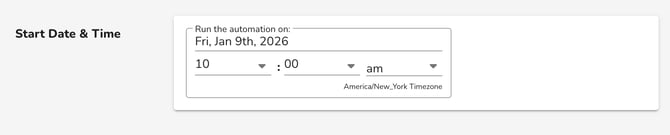
Runs the automation once at a specific future date and time. This is the same functionality as a Blast.
Best for:
-
One time promos
-
Event reminders
-
Announcements
-
Limited-time offers
Repeating
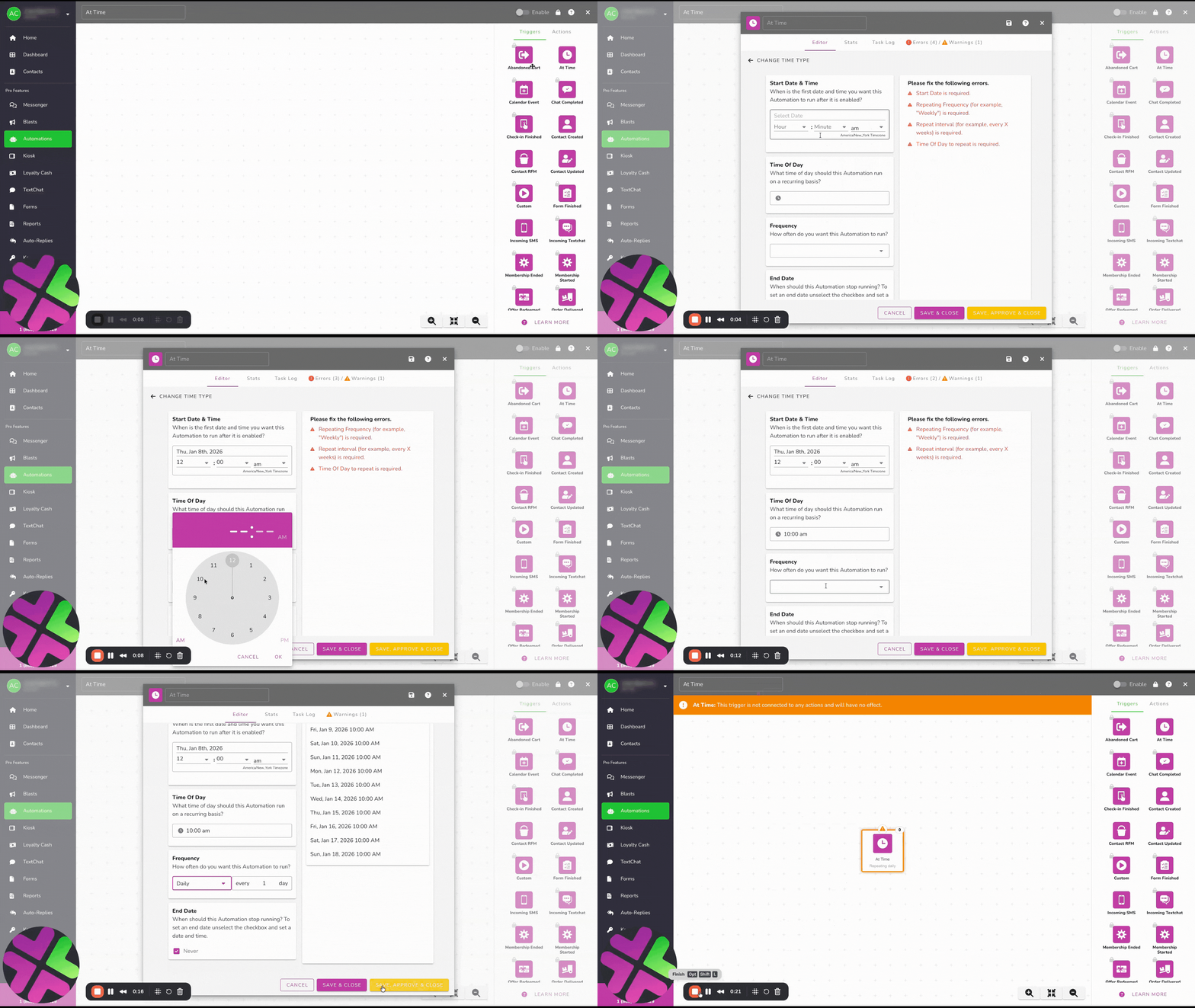
Runs the automation on a recurring schedule.
Best for:
- Birthday campaigns
-
Daily or weekly reports
-
Ongoing reminders
-
Cleanup or maintenance workflows
-
Regular check-ins
Common Use Cases
Customers commonly use At Time to:
- Send Birthday Promos
-
Send a weekly Patch report
-
Remind customers of upcoming events
- Run A/B tests
What Data This Trigger Has Access To
The At Time trigger does not rely on customer events. Instead it starts the automation at the scheduled time.
⚠️ Because of this, contact selection with the Select Contacts action block is required after the At Time block.
Important Things to Know
⚠️ Keep these in mind:
-
This trigger does not automatically target contacts
-
You must explicitly Select Contacts with the action block
-
Repeating automations will continue until disabled or their set end date
-
Time zones follow your account’s configuration
-
This trigger will not re-run past schedules if the automation was disabled
Example Automations
Example 1: Weekly Report
-
At Time → Repeating (Weekly)
-
Select Contacts
-
Create Report
-
Send Email or Slack Message
Example 2: Campaign Launch
-
At Time → Scheduled Time
-
Filter contacts
-
Send Email
-
Delay
-
Send SMS follow-up
Best Practices
✔ Keep the automation focused on one goal
✔ Add filters if the trigger applies to many contacts
✔ Pair with delays, segments, and tags to avoid over-messaging
✔ Name the automation clearly based on the trigger