![logo-patch-retention.png]](https://help.patchretention.com/hs-fs/hubfs/Email%20Campaign,%20Free%20Trial/logo-patch-retention.png?height=40&name=logo-patch-retention.png)
What’s in this article
What a contact import is
A contact import lets you bring customer contact information into Patch in bulk.
Common reasons to import contacts:
-
Move contacts from another platform into Patch
-
Add new contacts collected from events, forms, or ticketing tools
-
Update existing contacts with new details (like location, notes, tags, or custom fields)
Before you import
Your file should have:
-
One contact per row
-
Headers in the first row
-
A reliable identifier column (usually Email Address)
Accepted file types:
-
CSV
-
XLS
-
XLSX
Contact import statuses
Each contact import shows a status in the Imports table:
-
Completed: The import finished successfully.
-
Pending: You clicked Save & Do Later in Step 3. The import is saved but not started yet. You’ll have an option to confirm it from the Imports row.
-
Stopped: The import was interrupted and did not finish.
-
Running: The import is currently in progress and shows a progress bar.
-
When a contact import is Running, Patch shows a progress bar on the import row so you can track how far along it is.
-
What you’ll see:
-
Progress bar fills as contacts are processed
-
Records count updates as the import moves forward
-
Go to imported contacts
You can jump straight from an import to the contacts it brought into Patch.
-
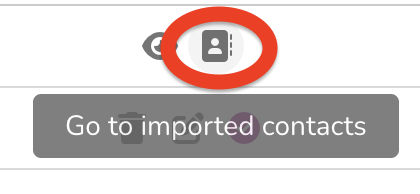
In Account Settings → Imports, find your contact import
-
Hover over the action icons on the left side of the import row
-
Click "Go to imported contacts"
-
What happens next:
-
Patch redirects you to the Contacts module
-
A segment is automatically selected so you only see contacts from that import
-
-
Use this to:
-
Spot check imported contacts
- Confirm fields mapped correctly
- Quickly build a segment-based campaign or automation
-
-
Import name
-
From the Imports table (edit icon next to the name)
-
Inside the Import editor
Tip: Name imports so they’re easy to find later, like:
-
VIP list - March 2026
-
Birthday club - Q2 upload
Step 1: Upload
-
Go to Account Settings → Imports
-
Click to start a new import
-
Select Contacts as the Import Type
-
Upload your file (CSV, XLS, or XLSX)
- Use Preview Data (optional) to review a sample of rows before mapping
Step 2: Map
-
Email Address
-
Phone Number (if your list is phone-based)
Tip: Only select one identifier column unless your team has a clear matching strategy.
If contact exists: This controls how Patch handles updates when a matching contact is found. Typical choices:
- Update/overwrite (replace with the imported value)
-
Skip if exists (keep the current value)
-
Use Skip if exists when you don’t want to overwrite good existing data.
Validation warnings: If Patch detects issues (like a value that doesn’t match a field type), you may see warnings or validation errors. Use:
-
View Errors (to see what’s wrong)
-
Preview Data (to spot patterns fast)
Step 3: Confirm
-
Import name: Update the import name (optional).
- Messaging opt-in
- SMS messaging (for contacts missing an opt-in status)
- Email messaging (for contacts missing an opt-in status)
- Only select these if you have permission to message these contacts.
- Additional fields (apply to all imported contacts): Add a field value that gets applied to every imported contact (example: Source = Spring event).
- Automation triggers: You can choose to Skip automations triggered by this import.
- This is helpful if you’re:
- Backfilling contacts and don’t want messages to send
- Testing mapping before turning on automations
- This is helpful if you’re:
- Accept liability (required): You’ll confirm you have permission to import and message these contacts by entering your initials.
- Click Confirm & Start Import to begin. If you click Save & Do Later, the import becomes Pending until you confirm it.
Troubleshooting
- 0 contacts imported or lots of skipped rows
- Make sure your identifier is mapped correctly (usually Email Address).
- Check for blank identifier values (blank emails/phones often cause skips).
- Some fields are blank on imported contacts
- Confirm each column is mapped to the correct Patch field.
- Check formatting (dates, numbers, phone formats).
- Can’t find the contacts you just imported
- Go back to the Imports table and click Go to imported contacts.
- This opens the Contacts module with the import’s segment already selected.